Today, email providers all have anti-spam filters. Some simply move the email to a “spam” folder, but others delete the email entirely. To counter this problem, sending servers must prove their legitimacy.
Prerequisites:
- A Linux VPS with internet access
- A domain name
Here, we will use a Debian 7 VPS and an OVH domain.
Installing Postfix and mailutils
Postfix will be our mail sending server.
Installing Postfix
sudo apt-get install postfix
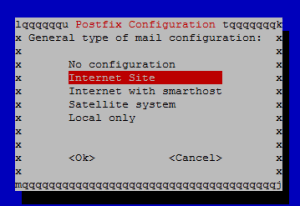
During installation, you are asked which type of configuration you want. Choose “Internet Site”, which is a basic configuration without redirecting to other servers. Then you are asked for the server’s domain name.
Installing & Using mailutils
sudo apt-get install mailutils
This package allows sending emails via command line. To send an email:
echo "Email content" | mail -s "email subject" [email protected]
Configuration
First, you need to tell the VPS which domain it belongs to:
sudo echo "domain.com" > /etc/hostname
Restart the service:
sudo service hostname.sh start
To verify the configuration was applied:
hostname
SPF
What is SPF?
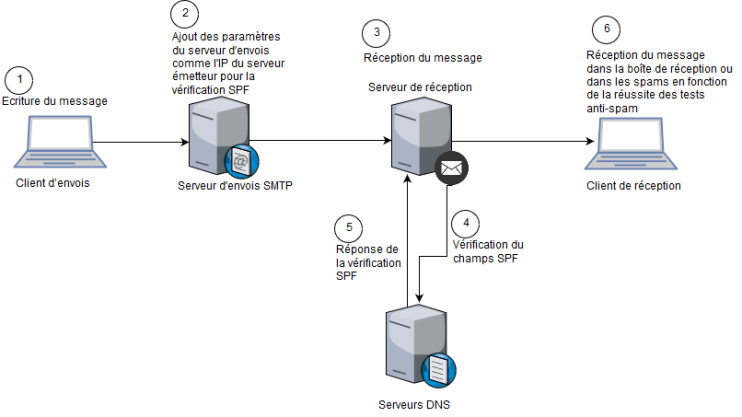
SMTP does not have a built-in mechanism to verify the sender’s identity. SPF (Sender Policy Framework) aims to reduce identity spoofing by publishing a TXT record in DNS that indicates which IP addresses are authorized to use the SMTP server. SPF is therefore a sender verification system developed to reduce spam and verify that an email address has not been spoofed.
Setting Up SPF
SPF is set up in the domain name manager. For OVH, go to the “DNS Zone” section, click “Add an entry”, select the SPF DNS record type, and enter the domain name in the “a” field. A new entry is added with the value:
v=spf1 a a:domain.com -all
DKIM
What is DKIM?
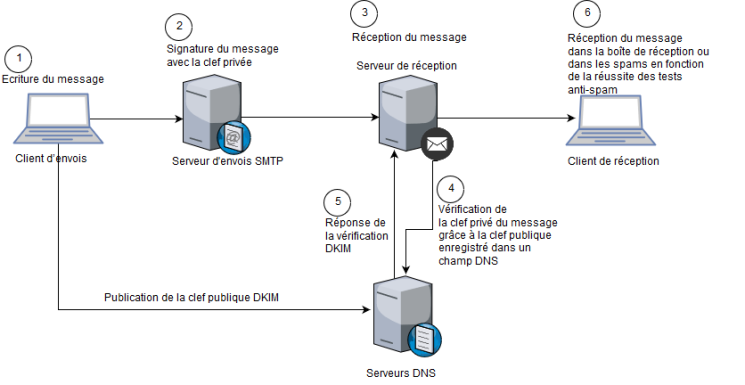
DKIM (DomainKeys Identified Mail) is a reliable authentication standard for the sender’s domain name. It provides effective protection against spam and phishing. DKIM uses a cryptographic signature to verify the authenticity of the sending domain.
The sending server has an RSA key pair and uses the private key to sign outgoing emails. The public key is published via DNS for anyone wanting to verify the signature of an email from this server. The recipient of a DKIM-signed email will not see any difference from a regular email.
Setting Up DKIM
First, install the OpenDKIM package:
sudo apt-get install opendkim opendkim-tools
Next, we will tell Postfix which port OpenDKIM will use. Run:
sudo vi /etc/postfix/main.cf
and add the following lines:
milter_default_action = accept

milter_protocol = 2

smtpd_milters = inet:localhost:12345

non_smtpd_milters = inet:localhost:12345
To specify the port OpenDKIM should use, open “/etc/default/opendkim” and replace its content with:
SOCKET="inet:12345@localhost"
This tells OpenDKIM which port to use.
Create the “opendkim” directory with mkdir /etc/opendkim – this directory will contain configuration files and OpenDKIM keys.
Then specify trusted hosts in sudo vi /etc/opendkim/TrustedHosts by adding:
*.domain.com
Now tell OpenDKIM which key file to use for our domain by opening “/etc/opendkim/KeyTable” and adding: mail._domainkey.domain.com domain.com:mail:/etc/opendkim/keys/domain.com/mail.private.
Link each email address to its corresponding domain by opening sudo vi /etc/opendkim/SigningTable and adding:
*@domain.com mail._domainkey.domain.com
mail._domainkey.domain.com will be the DKIM DNS record.
The last OpenDKIM file to modify is “/etc/opendkim.conf”. Set your domain name in the “Domain” field, verify the mode is “sv”, the selector field should contain the DKIM DNS subdomain name (for us “mail._domainkey”), then set KeyFile to:
/etc/opendkim/keys/domain.com/private.private
Finally, tell OpenDKIM where to find the previously created files:
# Our KeyTable and SigningTable
KeyTable refile:/etc/opendkim/KeyTable
SigningTable refile:/etc/opendkim/SigningTable

# Trusted Hosts
ExternalIgnoreList /etc/opendkim/TrustedHosts
InternalHosts /etc/opendkim/TrustedHosts
Generating DKIM Keys
Generate the DKIM key pair:
cd /etc/opendkim/keys
mkdir domain.com
cd domain.com
opendkim-genkey -s mail -d domain.com
chown opendkim:opendkim mail.private
cat /etc/opendkim/keys/domain.com/mail.txt
The displayed data must be registered in the DKIM DNS record.
Once configuration is complete, restart OpenDKIM and Postfix:
/etc/init.d/opendkim restart
/etc/init.d/postfix restart
Registering the DNS Record
On the OVH admin panel, go to the DNS zone and click “Add an entry”. Select TXT and copy the content between quotes into the value field. Then copy the subdomain name into OVH’s subdomain field – for us “mail._domainkey”. This information is available in “/etc/opendkim/keys/domain.com/mail.txt”.
MX
What is MX?
MX (Mail eXchanger) redirects emails destined for your server to another domain. It is a system for receiving emails. However, it is recommended to set it up because it increases the anti-spam trust score.
Setting Up MX
Go to the DNS zone, click “add an entry”, select MX, enter priority 1 (highest priority) and the target address (our domain name). Verify on the DNS records list that this line was added:
1 yourdomain.me.
Reverse DNS
What is Reverse DNS?
Reverse DNS (or rDNS) is a system that translates an IP address into a domain name. It must be configured on our SMTP server because some email services block messages sent from servers without rDNS (like AOL).
Setting Up Reverse DNS
Install DNSutils to test reverse DNS:
sudo apt-get install dnsutils
To set up reverse DNS, tell the VPS which domain it belongs to. This is done in the OVH admin interface of our VPS. Go to the “IP” menu at the bottom of the page, click “Manage my IPs” – the VPS IP addresses are listed (one IPv4 and one IPv6). Click the gear icon next to each IP, select “modify reverse” and enter the domain name.
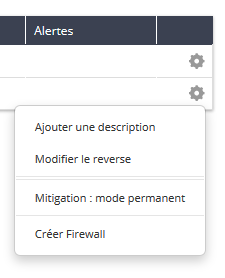
To test reverse DNS, return to the VPS and run:
dig -x yourIP +short
If your domain name is displayed, the configuration is working.
Testing the SMTP Server
Before testing the SMTP server, restart it:
sudo /etc/init.d/postfix restart
To test our SMTP server’s trust score, there is the website https://www.mail-tester.com
The test creates a temporary address to which you send an email via our SMTP server. It verifies domain authentication systems (DKIM and SPF), whether the email passes SpamAssassin, the HTML composition, presence on blacklists, and broken links in the message. The server is scored out of 10. Gmail gets 8/10. Note: scores can vary depending on message content – for testing, it is recommended to send a relatively long message with real content.
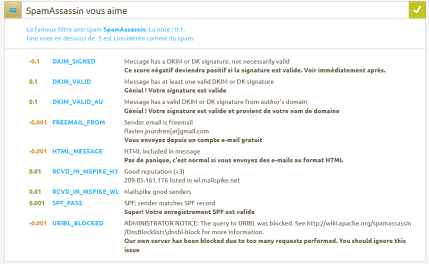
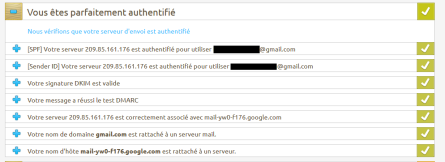
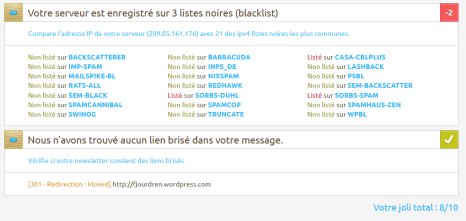
My SMTP server scored 10/10 instead of 1.7/10 before setting up SPF, DKIM, reverse DNS, and MX.